|
|
|
AutoSPRINK Training Site - Mouse Buttons and Gestures
|
The most basic operations in the AutoSPRINK CAD application begin with the mouse. To create and manipulate the elements in a drawing,
the mouse is used to select tools and objects, 'drag' objects into view and move objects to different locations. For example, creating
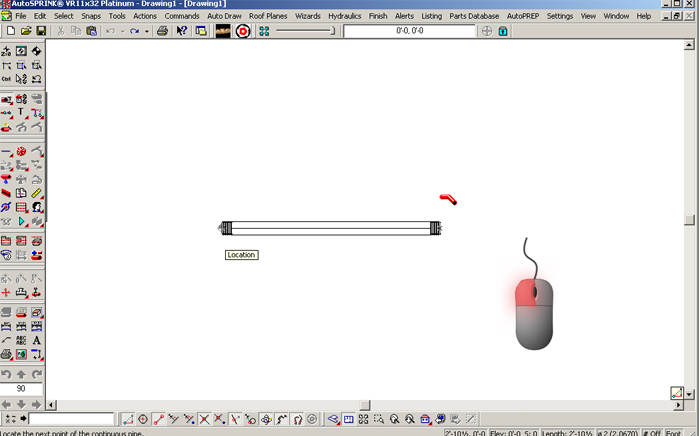
a segment of pipe requires users to select the pipe tool from the tool palette; place the cursor at the desired location on the screen;
press and hold the left mouse button and slide (drag) the mouse on its pad in the direction the desired pipe requires. As you slide (drag)
the mouse, the object is created.
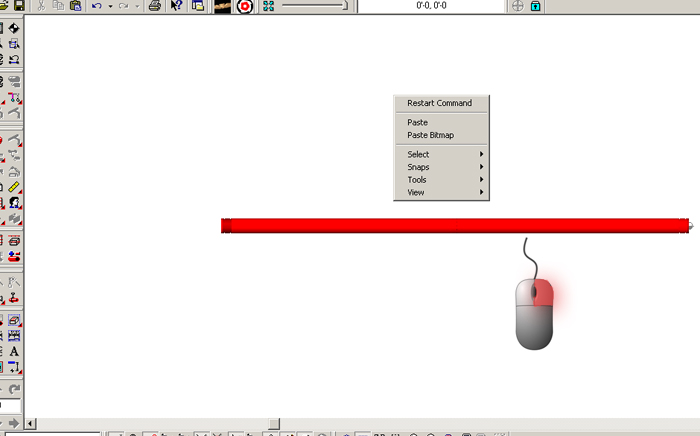
When you right click on the blank white space you are presented with a couple of quick options which include Paste, Select, Snaps, Tools, & View.
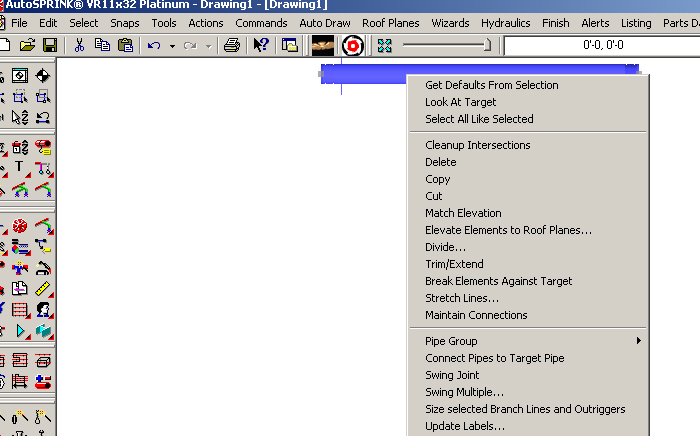
When you right click on object such as a sprinkler, line, fitting or pipe your top 3 options should remain the same but the rest will change according
to what item you are right clicking
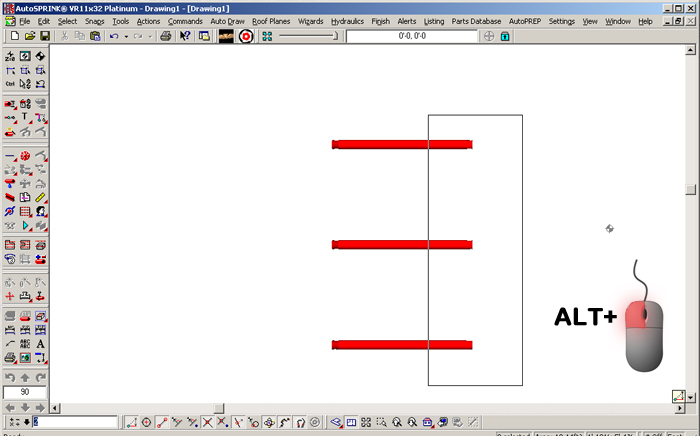
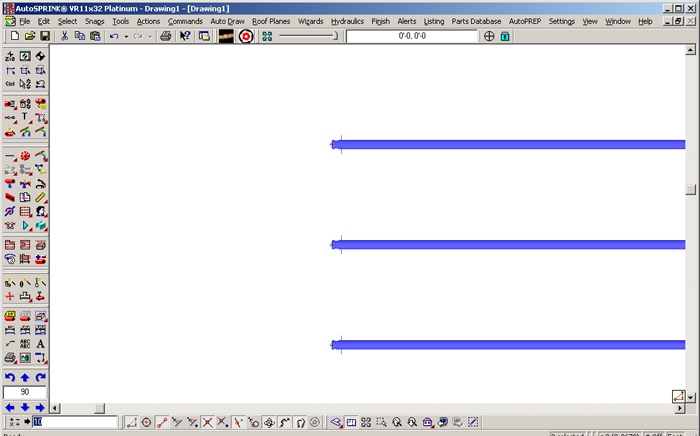
Holding ALT plus the left click mouse button will select anyting with the box including endpoints which can be used for stretching pipe.
|
|
|