|
AutoSPRINK Training Site - Smart Pipe & Drawing Pipe
|
 If you would like to set up your pipe to draw in your normal pipe standards. This eliminates going back and changing the properties of your pipe
after it has been created.
When drawing pipe you can select the
Pipe Group you would like
to draw in. In this Case, "T" is representing drawing Threaded pipe.
If you would like to set up your pipe to draw in your normal pipe standards. This eliminates going back and changing the properties of your pipe
after it has been created.
When drawing pipe you can select the
Pipe Group you would like
to draw in. In this Case, "T" is representing drawing Threaded pipe.
|
 Once you have selected the Pipe group you would like to draw in, the next thing would be to select what size you are going to use. So click and hold down until your mouse
is over the pipe size you would like to draw in then let go of the mouse button.
Once you have selected the Pipe group you would like to draw in, the next thing would be to select what size you are going to use. So click and hold down until your mouse
is over the pipe size you would like to draw in then let go of the mouse button.
|
Then once you have drawn pipe you can double-click on the item to check the propeties. In the "Diameter" it has what you have selected for the size
and "T" is for the Pipe Group
that the pipe belongs to.

|
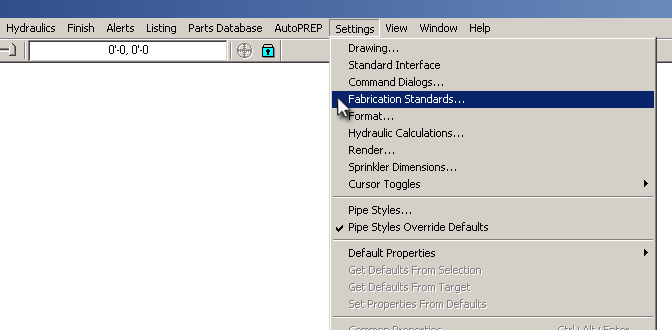
To change/add your Pipe Groups, click on "Settings" then
select "Fabrication Standards..." then a dialog window will pop up.
|
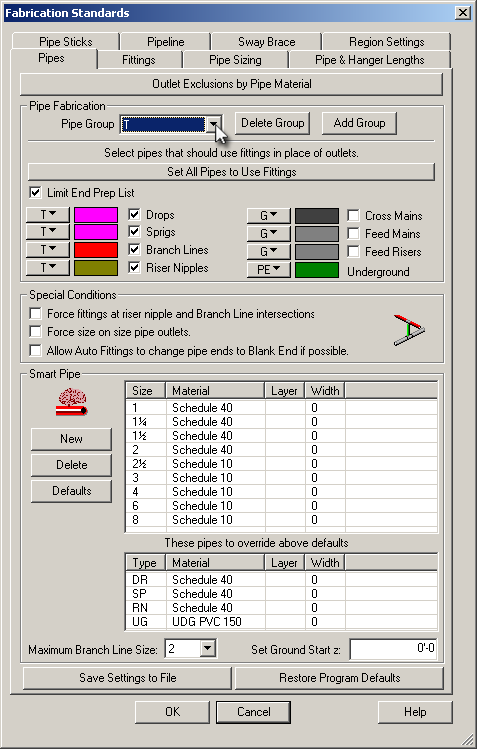 In the
"Fabrication Standards" window
default pipe sizes, pipe groups and pipe material are all listed in this area.
To edit which Pipe Group to change, select the Pipe Group and change to the one you which to modify.
Everytime you use the "Cleanup Intersections" tool it will always refer to the
settings you have here. Notice in the "Pipe Fabrication" section, underneath where it says
"Select pipes that should use fittings in place of outlets" there is a checkbox by "Branch Lines" but not
on "Cross Mains". That tells us when we use the "Cleanup Intersections" tool it will
prepare for fittings to be added on branch line intersections but not on anything intersecting with
the cross main it will place a welded outet instead. In the
"Fabrication Standards" window
default pipe sizes, pipe groups and pipe material are all listed in this area.
To edit which Pipe Group to change, select the Pipe Group and change to the one you which to modify.
Everytime you use the "Cleanup Intersections" tool it will always refer to the
settings you have here. Notice in the "Pipe Fabrication" section, underneath where it says
"Select pipes that should use fittings in place of outlets" there is a checkbox by "Branch Lines" but not
on "Cross Mains". That tells us when we use the "Cleanup Intersections" tool it will
prepare for fittings to be added on branch line intersections but not on anything intersecting with
the cross main it will place a welded outet instead. |
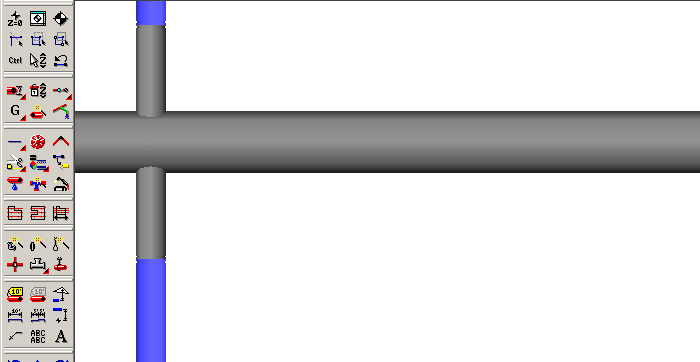
When you Right on the selected pipe and click to "Cleanup Intersections" for "Type-Group" "T" it will cut the pipe to prepare for a fitting
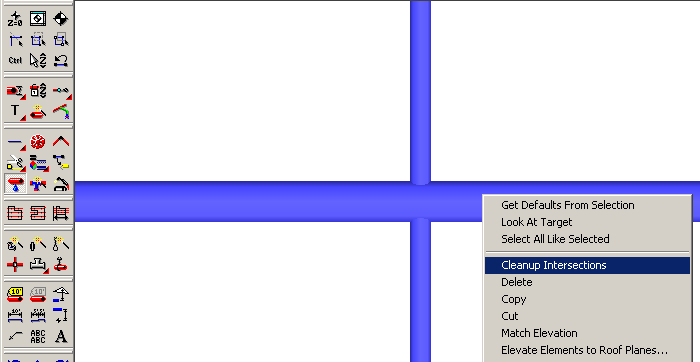
In the below picture it has cut both pipes at the point of intersection.
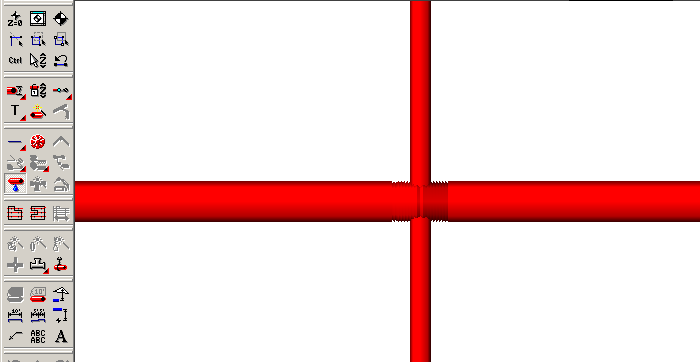
Now when you Right click on the selected pipe and click "Cleanup Intersections" for "Type-Group" "G"

It will added Grooved weleded outlets
|
Back To Training Menu
|